
:format(webp))
:format(webp))
New to nuwacom? Start your free 7-day trial. No credit card required. Already have an account? Log in and open Design systems.
At a glance
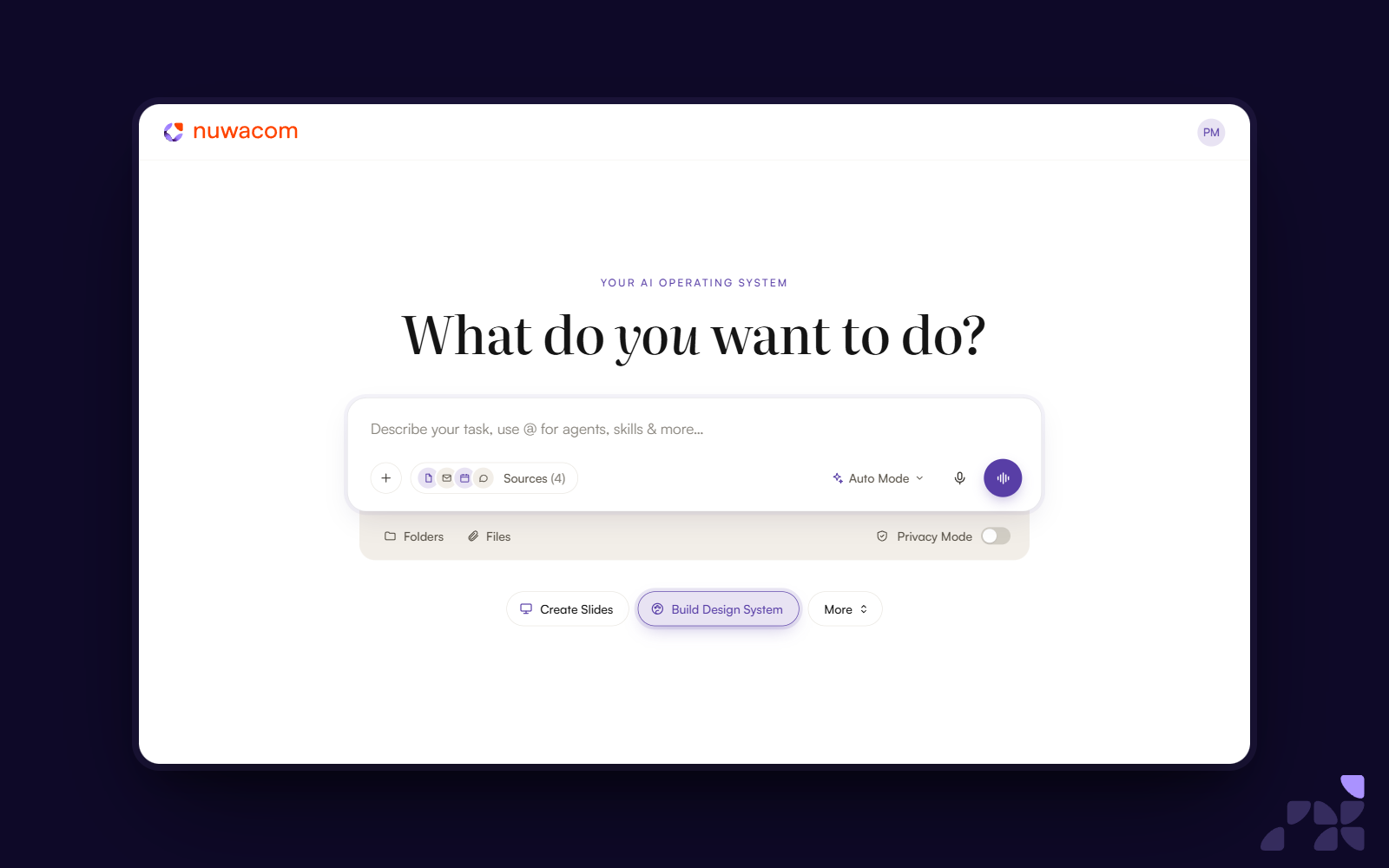
Build a design system from a style guide, a presentation, a website crawl or a description in chat.
Store colors, typography, logos, graphics and usage guidelines in one place.
Manage multiple design systems and enable or disable each one individually.
Select a design system with @ > Design systems, or let the AI use an enabled one automatically.
Freely available, license-free fonts are retrieved automatically.
You can try it without a credit card: start a free trial.
What are Design Systems in nuwacom?
A design system is your brand's visual identity, stored in your workspace. It holds your colors, fonts, logos and the rules for using them. When you ask nuwacom for a document, presentation or app, the design system guides how the result looks.
How do you build a design system?
Open Design systems and choose the route that fits your starting point:
Upload existing materials, such as a style guide or a presentation.
Provide a website, which the AI crawls.
Describe your brand in chat.
Add assets manually in the panel on the right.
The AI uses your input to build a design system that you can review and edit.
What does a design system contain?
Colors and typography: Define your brand palette, fonts and text styles in chat or add them directly. Font files can be uploaded separately.
Logos and graphics: Upload individual brand assets, or extract them from your materials where the format is supported.
Design guidelines: Describe how these elements should be used. Refine the guidance in chat or edit it directly.
Multiple design systems: Manage different brands or design directions, and enable or disable each system individually.
How do you use your brand in chat?
Select a design system through @ > Design systems and describe what you want to create. The AI can also use an enabled design system automatically.
If several design systems are available and you haven't selected one, the new clarification dialog asks which to use. It can also clarify other missing details before it creates the content. That way the result matches both your brand and your requirements.
How does nuwacom handle fonts?
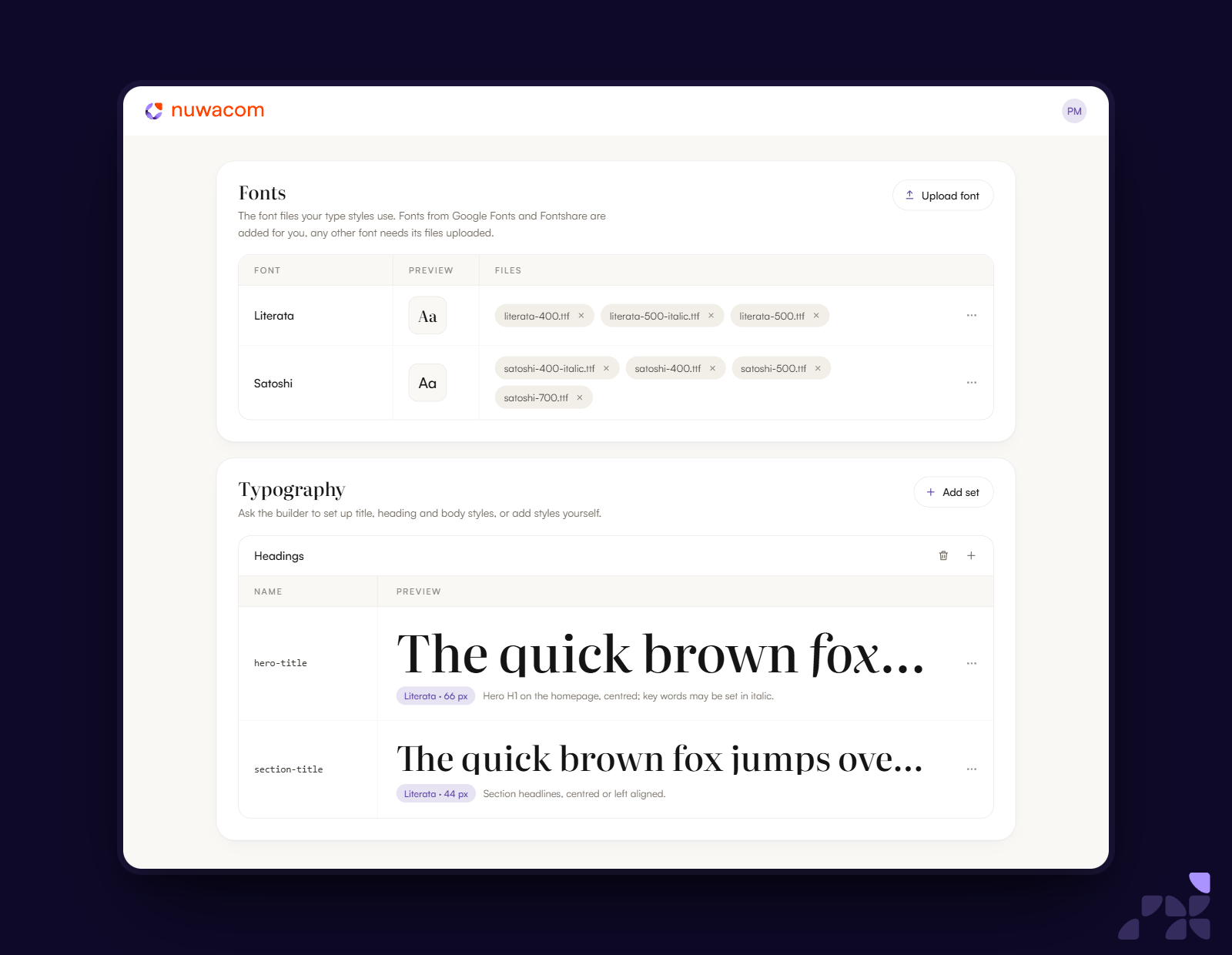
Freely available, license-free fonts, including suitable web fonts, are retrieved automatically. Fonts that require a license must be uploaded separately.
How good is the output?
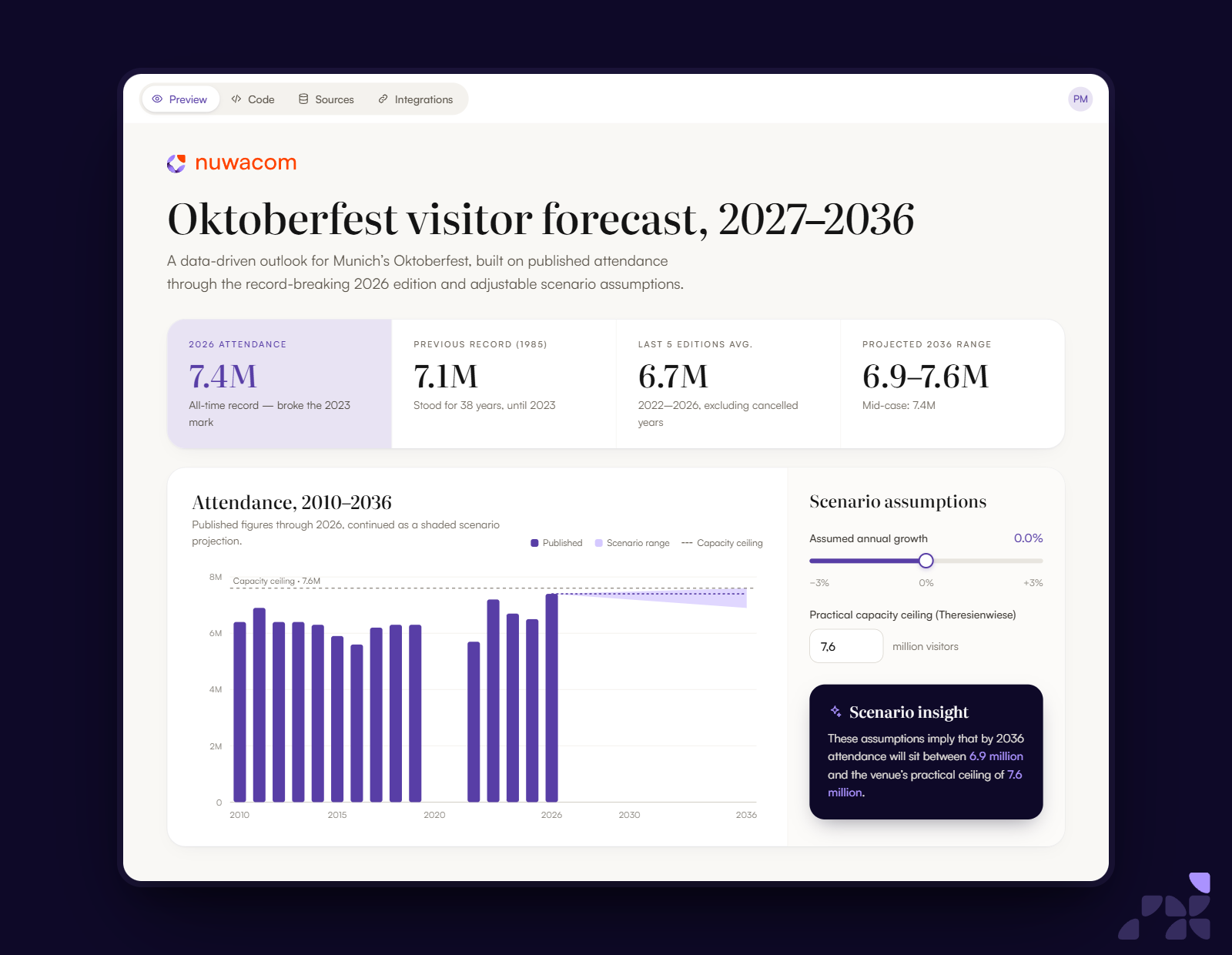
Documents, slides and apps are AI-generated, with your design system guiding their appearance. Results may vary and may not match an existing layout exactly. This release already brings a major improvement in quality, with documents, slides and apps that look great. We keep improving quality and how precisely your design guidelines are applied.
Learn more about the feature in our Help Center.